> For the complete documentation index, see [llms.txt](https://docs.blusapphire.io/llms.txt). Markdown versions of documentation pages are available by appending `.md` to page URLs; this page is available as [Markdown](https://docs.blusapphire.io/log-forwarding/03_log-forwarding-guide/cloud-log-forwarding/azure-microsoft/azure-sentinel.md).
# Azure Sentinel
This integration will allow to fetch Incident and associated Alert data from Azure Sentinel to BluSapphire.
### Overview
1. **Centralized Console:** Azure Sentinel serves as a unified control center for security log management. It consolidates information from various sources, providing security teams with a singular platform to monitor and respond to potential threats. This eliminates the need to navigate multiple interfaces, streamlining the investigation process.
2. **Alert Generation:** By analyzing events originating from a wide range of IT devices, including network components and security infrastructure, Sentinel's Security Information and Event Management (SIEM) capabilities identify suspicious activities and triggers alert.
3. **BluSapphire Integration:** The seamless integration between Azure Sentinel and the BluSapphire platform extends the incident monitoring process. Alerts generated within Sentinel, along with the associated incident data, are seamlessly transmitted to BluSapphire. This enables ongoing tracking and analysis, facilitating a continuous security monitoring process. The data transition ensures that the insights derived from Azure Sentinel's analysis remain accessible for further evaluation and response within the BluSapphire environment and also avoid duplication of log data.
**Requirements to fetch Alert & Incident data from customer:**
To obtain the mentioned information, follow these outlined steps.
1. **Login:** Log in to your Azure administration portal
2. **Search:** Once logged in, use the search functionality provided within the portal. This is typically located at the top of the interface.
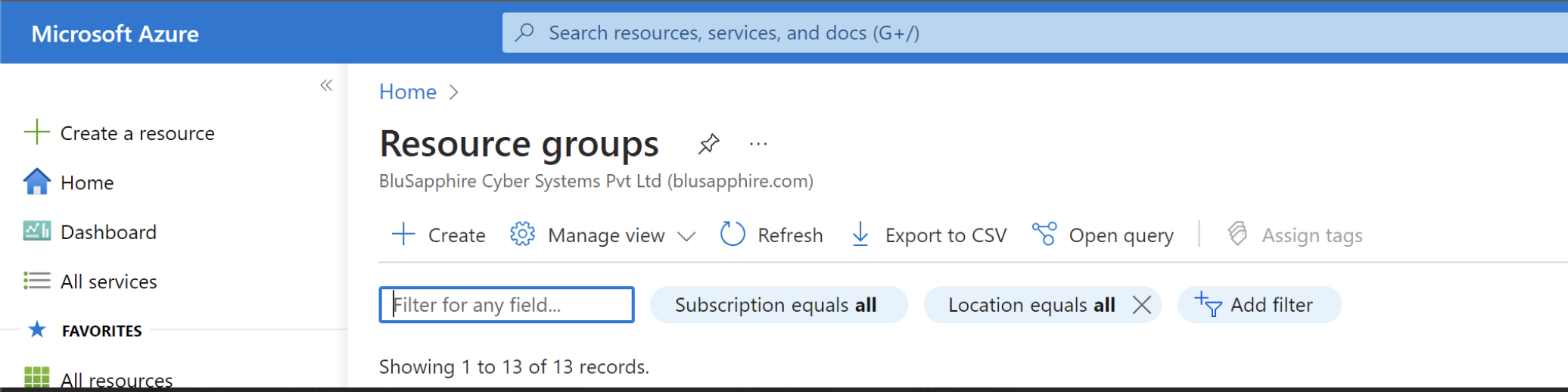
Within the Search tab - lookup to Resource Group created for Sentinel Deployment, once found, make a note of it.
You may refer to the below screenshort for your reference.
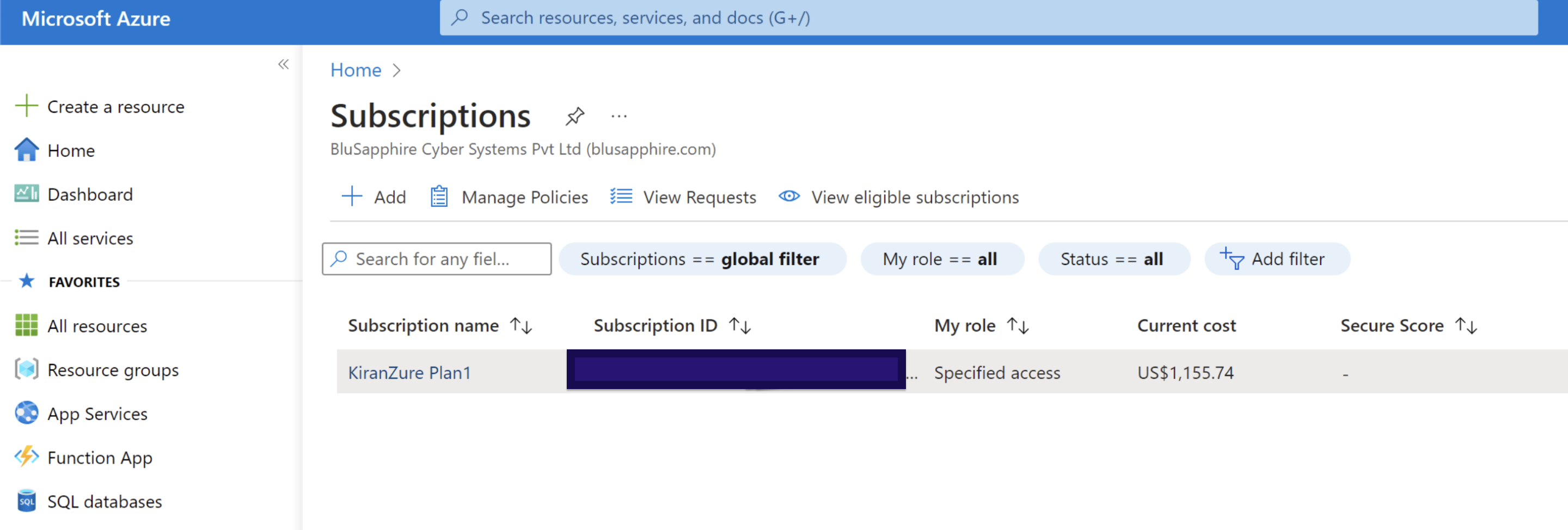
Now, Within the Search tab - lookup to Subscription, once found, make a note of it.
You may refer to the below screenshort for your reference.
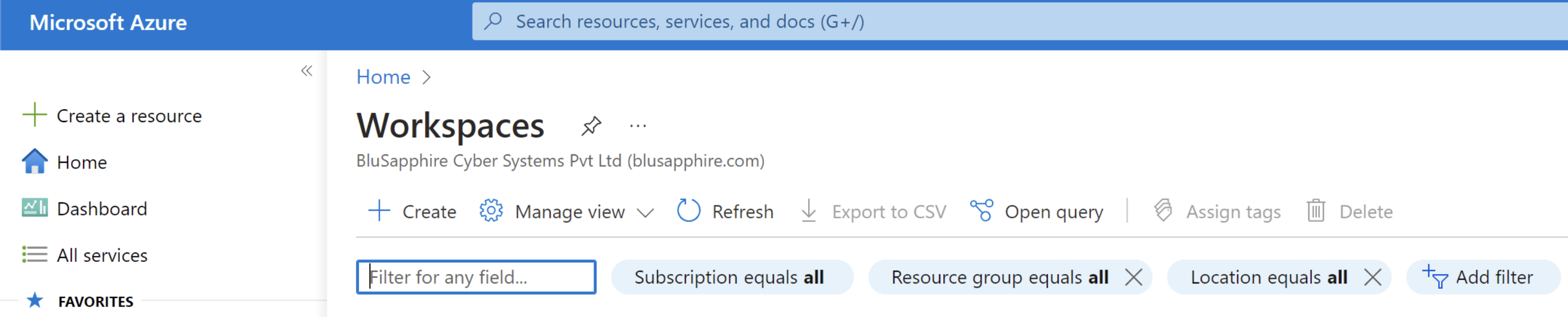
Within the Search tab - lookup to Workspaces, once found, make a note of it.
You may refer to the below screenshort for your reference.
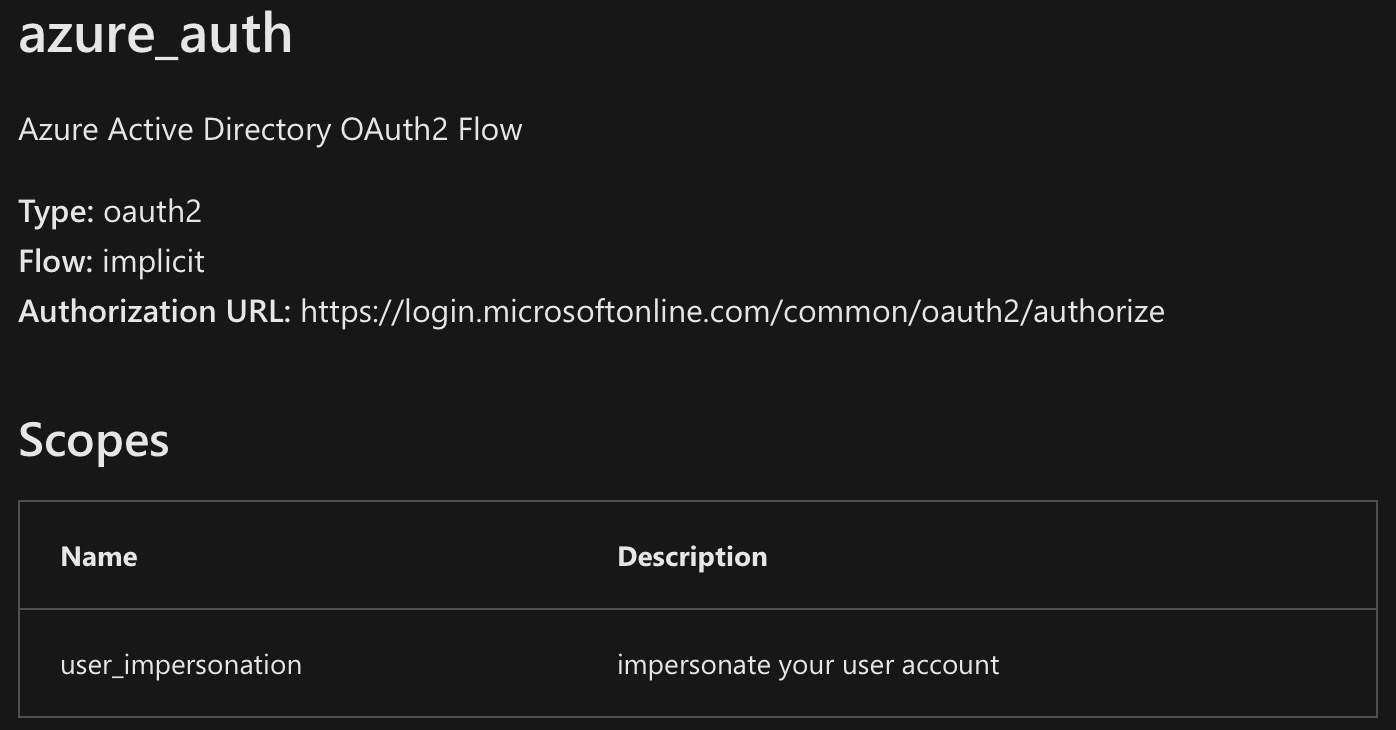
**Execute Azure Authentication**
Authenticate the system by following the above steps.
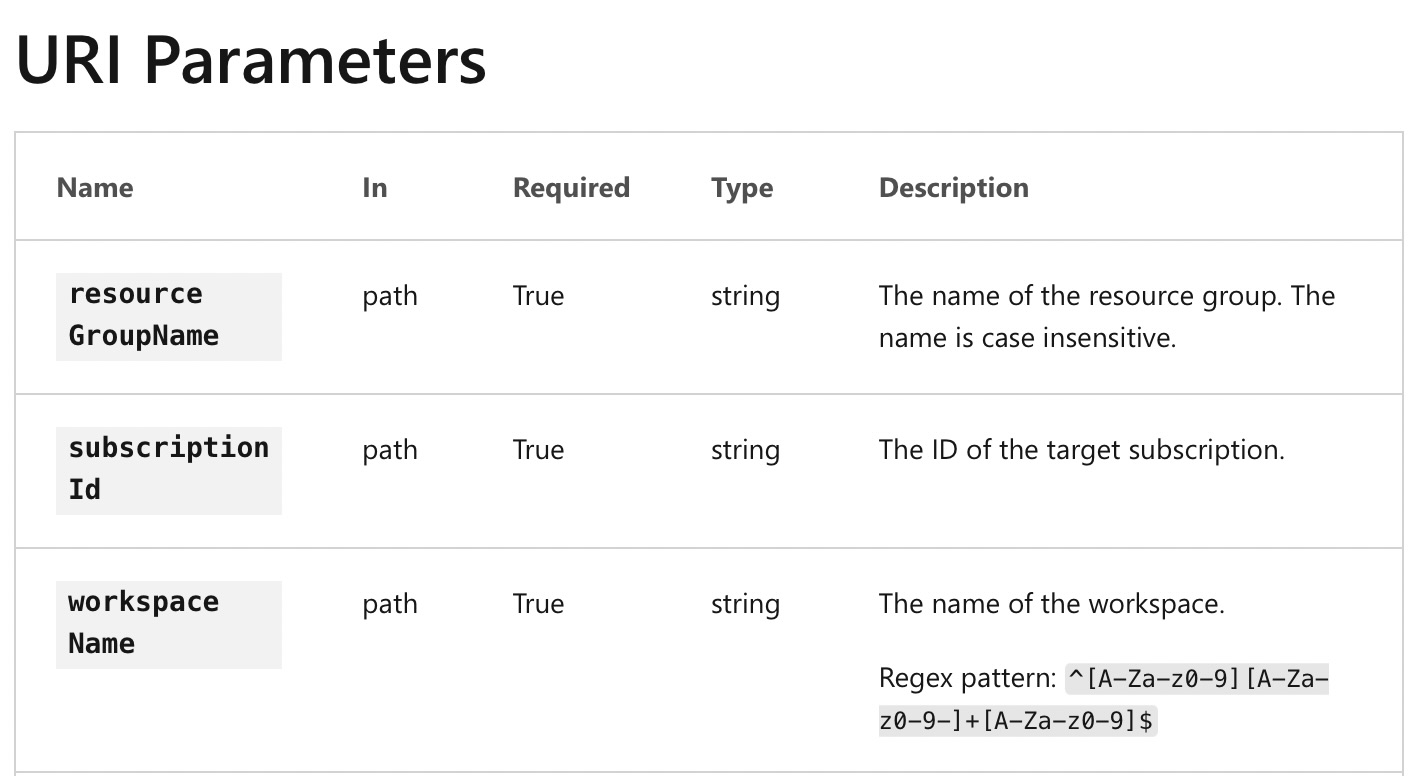
Post that, Customer then to share 'Resource Group', 'Subscription ID', Workspace Name' with BluSapphire deployment engineering team.
Customer may follow the following URL for further insights (if necessary)
{% embed url="" %}