> For the complete documentation index, see [llms.txt](https://docs.blusapphire.io/llms.txt). Markdown versions of documentation pages are available by appending `.md` to page URLs; this page is available as [Markdown](https://docs.blusapphire.io/log-forwarding/03_log-forwarding-guide/log-forward/dell/dell-poweredge-log-integration.md).
# Dell PowerEdge Log Integration
**Dell**
**PowerEdge R440/R740**\
**(Physical Server)**
**Log Integration Guide**
**Log Integration procedure:**
Dell PowerEdge allows you to send Alerts using iDRAC to a Syslog Server or Log Collector.
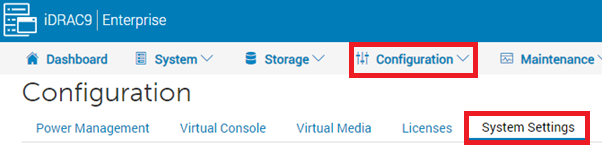
1. Login to the iDRAC interface and go to Configuration > System Settings.
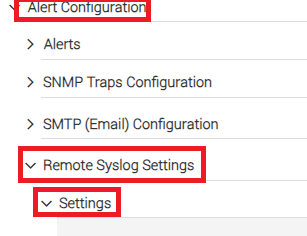
1. Under System Settings, Click on Alert Configuration->Remote Syslog Settings->Settings.
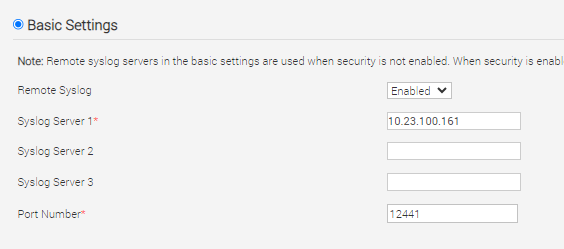
1. Under Settings-> Basic Settings, Enter details as below:
* Remote Syslog: Enabled
* Syslog Server 1 : \[Log Collector IP of specific branch]
* Port: 12441
Note: If Syslog Server 1 is already used, Enter details in Syslog Server 2 or Syslog Server 3.
Click **Apply** to save the changes.
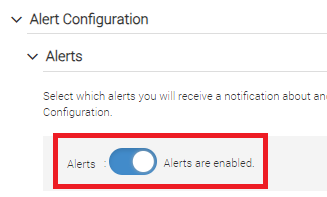
1. Goto Alert Configuration-> Alerts, Enable the ‘Alerts’ if not enabled.
1. Under same Alerts Section, Tick the ‘**Remote System log**’ option as below and click **Apply**.
1. You have finished the iDRAC Remote Syslog configuration successfully.