> For the complete documentation index, see [llms.txt](https://docs.blusapphire.io/llms.txt). Markdown versions of documentation pages are available by appending `.md` to page URLs; this page is available as [Markdown](https://docs.blusapphire.io/m-soc/m-soc-or-self-service-portal/asset-reconciliation.md).
# Asset Reconciliation
## Asset Reconciliation
1. Login to [https://console.blusapphire.com](https://console.blusapphire.com/) with provided credentials.
2. Go to the 'Documents' page as shown below.
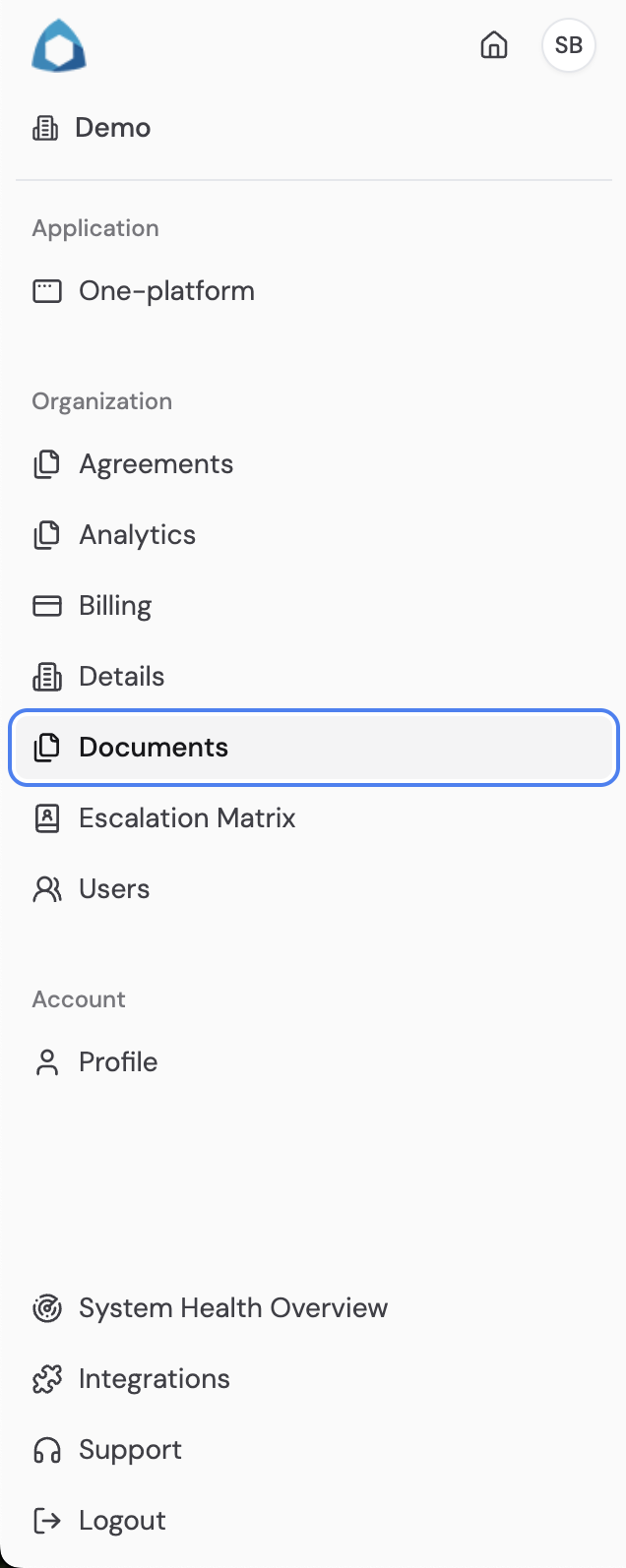 3. Click on the 'Upload Document' button located in the top-left corner of the interface

4\. Select 'Inventory' as the Document Type

## Process for updating the list of assets
1. Upload new document as shown below
```
a) Enter the Document Name
b) Enter the Document Description
c) Click on the choose file button under upload file
d) Upload the file containing the updated list of assets
```

3. Click on the 'Upload Document' button located in the top-left corner of the interface

4\. Select 'Inventory' as the Document Type

## Process for updating the list of assets
1. Upload new document as shown below
```
a) Enter the Document Name
b) Enter the Document Description
c) Click on the choose file button under upload file
d) Upload the file containing the updated list of assets
```

2. Once the above steps are completed, press the upload button on the bottom-right hand corner

3. The updated list will be stored in the Documents section as seen below

## Process for keeping the same inventory list
1. Click on the checkbox next to 'I don't have any changes'

2. Press the upload button on the bottom-right hand corner

3. The list will be stored in the Documents section as seen below

##